- http://www.bohemiancoding.com/sketch --%3E %3Ctitle%3EPage 1%3C/title%3E %3Cdesc%3ECreated with Sketch.%3C/desc%3E %3Cdefs%3E %3Cpolygon id='path-1' points='57.0106786 0.000357142857 0 0.000357142857 0 34.7572143 57.0106786 34.7572143 57.0106786 0.000357142857'%3E%3C/polygon%3E %3C/defs%3E %3Cg id='Symbols' stroke='none' stroke-width='1' fill='none' fill-rule='evenodd'%3E %3Cg id='CR-StackedLogo'%3E %3Cg id='Page-1'%3E %3Cg id='Group-3' transform='translate(0.ffffff, 0.178214)'%3E %3Cmask id='mask-2' fill='white'%3E %3Cuse xlink:href='%23path-1'%3E%3C/use%3E %3C/mask%3E %3Cg id='Clip-2'%3E%3C/g%3E %3Cpath d='M38.1360357,15.9306071 L38.1360357,8.06203571 L42.86675,8.06203571 C45.03925,8.06203571 46.8249643,9.84828571 46.8249643,12.02025 C46.8249643,14.19275 45.03925,15.9306071 42.86675,15.9306071 L38.1360357,15.9306071 Z M23.5572857,23.5095357 C21.9646071,25.1023929 19.7921071,26.06775 17.3785357,26.06775 C12.59925,26.06775 8.68942857,22.1579286 8.68942857,17.3788214 C8.68942857,12.5995357 12.59925,8.68971429 17.3785357,8.68971429 C19.7921071,8.68971429 21.9646071,9.65525 23.5572857,11.2479286 L29.4469286,5.35882143 L29.4469286,29.3988214 L23.5572857,23.5095357 Z M29.4469286,34.2745357 L38.1360357,34.2745357 L38.1360357,23.5095357 L40.6946071,23.5095357 L46.9701429,34.2745357 L57.0106786,34.2745357 L49.3837143,21.8682857 C53.00425,19.9854286 55.5144286,16.22025 55.5144286,11.8272143 C55.5144286,5.55185714 50.3976429,0.483107143 44.1703214,0.483107143 L29.4469286,0.483107143 L29.4469286,4.87596429 C26.2605,1.88310714 22.0610357,0.00025 17.3785357,0.00025 C7.8205,0.00025 -3.57142858e-05,7.72435714 -3.57142858e-05,17.3788214 C-3.57142858e-05,27.0332857 7.8205,34.7572143 17.3785357,34.7572143 C22.0610357,34.7572143 26.2605,32.8743571 29.4469286,29.8815 L29.4469286,34.2745357 Z' id='Fill-1' fill='%2300AE4D' mask='url(%23mask-2)'%3E%3C/path%3E %3C/g%3E %3Cpath d='M150.731214,16.1079821 L150.731214,9.87226786 C150.973536,7.53655357 152.934607,6.39083929 154.917643,6.655125 L154.917643,5.46530357 C153.154964,5.20083929 151.524429,6.08226786 150.731214,7.62476786 L150.70925,5.531375 L149.585321,5.531375 L149.585321,16.1079821 L150.731214,16.1079821 Z' id='Fill-4' fill='%23ffffff'%3E%3C/path%3E %3Cpath d='M139.119518,10.0484821 C139.427911,7.91116071 141.036482,6.47883929 142.975589,6.47883929 C144.914518,6.47883929 146.523089,7.91116071 146.655232,10.0484821 L139.119518,10.0484821 Z M147.845054,10.3570536 C147.845054,7.404375 145.685768,5.42116071 142.997554,5.42116071 C140.243268,5.42116071 137.929696,7.60258929 137.929696,10.775625 C137.929696,13.9045536 140.353446,16.218125 143.195946,16.218125 C144.892554,16.218125 146.346839,15.513125 147.360411,14.2129464 L146.545054,13.5299107 C145.773804,14.5875893 144.606125,15.1384821 143.195946,15.1384821 C141.014518,15.1384821 139.251661,13.441875 139.097554,11.1061607 L147.845054,11.1061607 L147.845054,10.3570536 Z' id='Fill-6' fill='%23ffffff'%3E%3C/path%3E %3Cpath d='M121.602196,10.7315536 C121.646304,7.93316071 123.056482,6.478875 125.017554,6.478875 C126.670054,6.478875 127.771839,7.53655357 127.749696,9.43155357 L127.749696,16.1079821 L128.895589,16.1079821 L128.895589,10.7315536 C128.939696,7.93316071 130.349875,6.478875 132.310946,6.478875 C133.963446,6.478875 135.065232,7.53655357 135.043089,9.43155357 L135.043089,16.1079821 L136.188982,16.1079821 L136.188982,9.38744643 C136.210946,6.91958929 134.822732,5.42119643 132.443089,5.42119643 C130.746482,5.42119643 129.314161,6.43476786 128.697196,7.93316071 C128.234518,6.36869643 126.956482,5.42119643 125.149696,5.42119643 C123.585232,5.42119643 122.219161,6.32458929 121.602196,7.64673214 L121.602196,5.531375 L120.456482,5.531375 L120.456482,16.1079821 L121.602196,16.1079821 L121.602196,10.7315536 Z' id='Fill-8' fill='%23ffffff'%3E%3C/path%3E %3Cpath d='M117.151679,16.1079821 L118.297393,16.1079821 L118.297393,5.531375 L117.151679,5.531375 L117.151679,10.9078036 C117.107571,13.7061964 115.56525,15.1604821 113.427929,15.1604821 C111.731321,15.1604821 110.607393,14.1028036 110.607393,12.2078036 L110.607393,5.531375 L109.461679,5.531375 L109.461679,12.2519107 C109.461679,14.7197679 110.871857,16.2181607 113.295607,16.2181607 C115.036321,16.2181607 116.51275,15.2706607 117.151679,13.8824464 L117.151679,16.1079821 Z' id='Fill-10' fill='%23ffffff'%3E%3C/path%3E %3Cpath d='M100.802179,13.8604643 L100.16325,14.7638571 C101.154679,15.6452857 102.454679,16.2181429 104.151464,16.2181429 C106.1345,16.2181429 107.720929,15.1385 107.720929,13.2435 C107.720929,11.7451071 106.993786,11.1061786 104.636107,10.2908214 L103.732714,9.98242857 C102.41075,9.54171429 101.705571,9.101 101.705571,8.13153571 C101.705571,6.91957143 102.829321,6.45689286 103.864857,6.45689286 C104.856464,6.45689286 105.914143,6.98564286 106.685393,7.66885714 L107.368429,6.72135714 C106.376821,5.92796429 105.297179,5.44332143 103.864857,5.44332143 C102.058071,5.44332143 100.581821,6.41278571 100.581821,8.19760714 C100.581821,9.56367857 101.397179,10.4231429 103.402179,11.1281429 L104.41575,11.4808214 C105.914143,12.0095714 106.597179,12.296 106.597179,13.2435 C106.597179,14.6095714 105.407357,15.2045714 104.151464,15.2045714 C102.829321,15.2045714 101.661464,14.6536786 100.802179,13.8604643' id='Fill-12' fill='%23ffffff'%3E%3C/path%3E %3Cpath d='M90.8646964,10.7315536 C90.9088036,7.93316071 92.451125,6.478875 94.5884464,6.478875 C96.2852321,6.478875 97.4089821,7.53655357 97.4089821,9.43155357 L97.4089821,16.1079821 L98.5546964,16.1079821 L98.5546964,9.38744643 C98.5546964,6.91958929 97.1445179,5.42119643 94.7207679,5.42119643 C92.9800536,5.42119643 91.503625,6.36869643 90.8646964,7.75691071 L90.8646964,5.531375 L89.7189821,5.531375 L89.7189821,16.1079821 L90.8646964,16.1079821 L90.8646964,10.7315536 Z' id='Fill-14' fill='%23ffffff'%3E%3C/path%3E %3Cpath d='M82.5802143,15.0723571 C80.2445,15.0723571 78.3496786,13.1553929 78.3496786,10.8196786 C78.3496786,8.48396429 80.2445,6.567 82.5802143,6.567 C84.9378929,6.567 86.8328929,8.48396429 86.8328929,10.8196786 C86.8328929,13.1553929 84.9378929,15.0723571 82.5802143,15.0723571 M82.5802143,5.42128571 C79.6055714,5.42128571 77.2037857,7.84503571 77.2037857,10.8196786 C77.2037857,13.7943214 79.6055714,16.2180714 82.5802143,16.2180714 C85.5548571,16.2180714 87.9786071,13.7943214 87.9786071,10.8196786 C87.9786071,7.84503571 85.5548571,5.42128571 82.5802143,5.42128571' id='Fill-16' fill='%23ffffff'%3E%3C/path%3E %3Cpath d='M75.0224107,12.4282143 C73.8104464,13.9926786 71.915625,14.9621429 69.8002679,14.9621429 C66.1866964,14.9621429 63.2120536,12.0096429 63.2120536,8.37392857 C63.2120536,4.76017857 66.1866964,1.8075 69.8002679,1.8075 C71.9375893,1.8075 73.8104464,2.77714286 75.0224107,4.36357143 L75.9477679,3.46017857 C74.4934821,1.6975 72.268125,0.551607143 69.8002679,0.551607143 C65.4815179,0.551607143 61.9559821,4.07714286 61.9559821,8.37392857 C61.9559821,12.6926786 65.4815179,16.2182143 69.8002679,16.2182143 C72.268125,16.2182143 74.4715179,15.0723214 75.9038393,13.2875 L75.0224107,12.4282143 Z' id='Fill-18' fill='%23ffffff'%3E%3C/path%3E %3Cpath d='M124.092304,32.2054107 L123.453375,33.1088036 C124.444804,33.9902321 125.744804,34.5630893 127.441589,34.5630893 C129.424625,34.5630893 131.011054,33.4834464 131.011054,31.5884464 C131.011054,30.0900536 130.283911,29.451125 127.926232,28.6357679 L127.022839,28.327375 C125.700875,27.8866607 124.995696,27.4459464 124.995696,26.4764821 C124.995696,25.2645179 126.119446,24.8018393 127.155161,24.8018393 C128.146589,24.8018393 129.204268,25.3305893 129.975518,26.0138036 L130.658554,25.0663036 C129.666946,24.2729107 128.587304,23.7882679 127.155161,23.7882679 C125.348196,23.7882679 123.871946,24.7577321 123.871946,26.5425536 C123.871946,27.908625 124.687304,28.7680893 126.692304,29.4730893 L127.705875,29.8257679 C129.204268,30.3545179 129.887304,30.6409464 129.887304,31.5884464 C129.887304,32.9545179 128.697482,33.5495179 127.441589,33.5495179 C126.119446,33.5495179 124.951589,32.998625 124.092304,32.2054107' id='Fill-20' fill='%23ffffff'%3E%3C/path%3E %3Cpath d='M122.087143,33.858 L121.77875,32.9324643 C121.161786,33.3071071 120.544821,33.4833571 119.817679,33.4833571 C118.781964,33.4833571 118.297143,32.8663929 118.297143,31.7426429 L118.297143,24.9340714 L121.999107,24.9340714 L121.999107,23.85425 L118.297143,23.85425 L118.297143,20.2187143 L117.129464,20.2187143 L117.129464,31.7647857 C117.129464,33.5055 117.98875,34.5631786 119.751429,34.5631786 C120.610893,34.5631786 121.381964,34.3206786 122.087143,33.858' id='Fill-22' fill='%23ffffff'%3E%3C/path%3E %3Cpath d='M111.312696,34.4529286 L111.312696,28.2172143 C111.555018,25.8815 113.516089,24.7357857 115.499304,25.0000714 L115.499304,23.81025 C113.736446,23.5457857 112.105911,24.4272143 111.312696,25.9697143 L111.290732,23.8763214 L110.166982,23.8763214 L110.166982,34.4529286 L111.312696,34.4529286 Z' id='Fill-24' fill='%23ffffff'%3E%3C/path%3E %3Cpath d='M103.027732,33.4173036 C100.692018,33.4173036 98.7971964,31.5003393 98.7971964,29.164625 C98.7971964,26.8289107 100.692018,24.9119464 103.027732,24.9119464 C105.385411,24.9119464 107.280411,26.8289107 107.280411,29.164625 C107.280411,31.5003393 105.385411,33.4173036 103.027732,33.4173036 M103.027732,23.7662321 C100.053089,23.7662321 97.6513036,26.1899821 97.6513036,29.164625 C97.6513036,32.1392679 100.053089,34.5630179 103.027732,34.5630179 C106.002375,34.5630179 108.426125,32.1392679 108.426125,29.164625 C108.426125,26.1899821 106.002375,23.7662321 103.027732,23.7662321' id='Fill-26' fill='%23ffffff'%3E%3C/path%3E %3Cpath d='M90.8210536,33.4173036 C88.5069464,33.4173036 86.6344464,31.5003393 86.6344464,29.164625 C86.6344464,26.8289107 88.5069464,24.9119464 90.8210536,24.9119464 C93.134625,24.9119464 95.0076607,26.8289107 95.0076607,29.164625 C95.0076607,31.5003393 93.134625,33.4173036 90.8210536,33.4173036 M90.8210536,23.7662321 C89.0581964,23.7662321 87.515875,24.7356964 86.6344464,26.2119464 L86.6344464,23.8764107 L85.4887321,23.8764107 L85.4887321,38.749625 L86.6344464,38.749625 L86.6344464,32.0951607 C87.5378393,33.5935536 89.1023036,34.5630179 90.887125,34.5630179 C93.7737321,34.5630179 96.1530179,32.1392679 96.1530179,29.164625 C96.1530179,26.1899821 93.7515893,23.7662321 90.8210536,23.7662321' id='Fill-28' fill='%23ffffff'%3E%3C/path%3E %3Cpath d='M75.0222857,28.3934286 C75.3308571,26.2561071 76.93925,24.8237857 78.8783571,24.8237857 C80.8172857,24.8237857 82.4258571,26.2561071 82.5581786,28.3934286 L75.0222857,28.3934286 Z M83.748,28.7018214 C83.748,25.7493214 81.5885357,23.7661071 78.9003214,23.7661071 C76.1460357,23.7661071 73.8324643,25.9475357 73.8324643,29.1205714 C73.8324643,32.2495 76.2562143,34.5630714 79.0987143,34.5630714 C80.7953214,34.5630714 82.2496071,33.8580714 83.2631786,32.5578929 L82.448,31.8748571 C81.67675,32.9325357 80.5088929,33.4834286 79.0987143,33.4834286 C76.9172857,33.4834286 75.1544286,31.7868214 75.0003214,29.4511071 L83.748,29.4511071 L83.748,28.7018214 Z' id='Fill-30' fill='%23ffffff'%3E%3C/path%3E %3Cpath d='M64.2033571,26.9611964 L64.2033571,20.1745893 L68.1255,20.1745893 C70.54925,20.1745893 71.9594286,21.5406607 71.9594286,23.5678036 C71.9594286,25.3747679 70.7255,26.9611964 68.0813929,26.9611964 L64.2033571,26.9611964 Z M69.073,28.0408393 C71.673,27.6442321 73.1933571,25.771375 73.1933571,23.5678036 C73.1933571,20.9458393 71.4087143,19.0286964 68.1474643,19.0286964 L62.9913929,19.0286964 L62.9913929,34.4529821 L64.2033571,34.4529821 L64.2033571,28.1069107 L67.6406786,28.1069107 L72.0035357,34.4529821 L73.4799643,34.4529821 L69.073,28.0408393 Z' id='Fill-32' fill='%23ffffff'%3E%3C/path%3E %3C/g%3E %3C/g%3E %3C/g%3E %3C/svg%3E)
VolunteerSignup Pages
On this page:
- Creating a new volunteer signup
- To use a container or not?
- The “Volunteer Signup Container” Content Block
- The “Volunteer Signup Form” Content Block
- NationBuilder Settings for Volunteer Signups
Creating a new volunteer signup
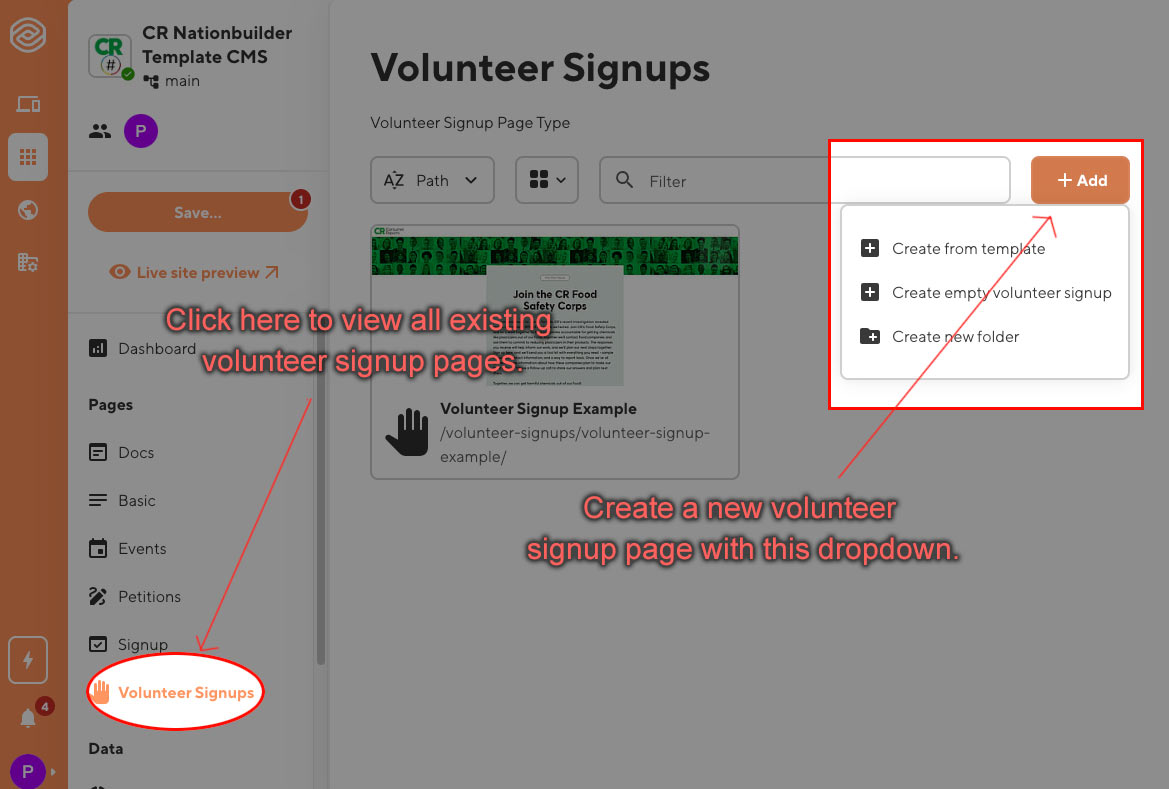
From the CloudCannon dashbaord, click “Signup” to view all existing volunteersignup pages. To create a new page, you could click the orange “Add” button in the top right corner.
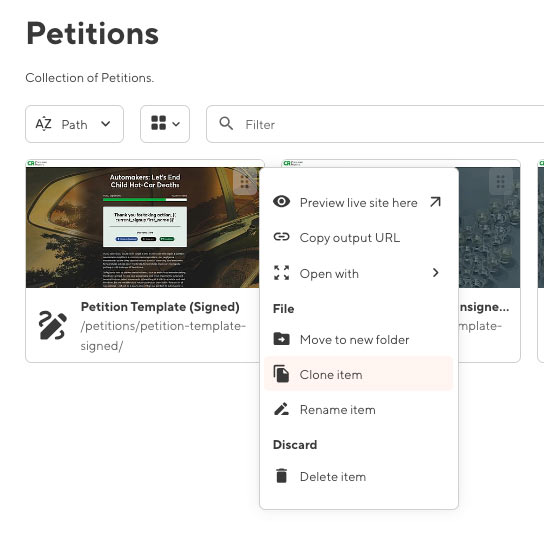
You can also duplicate an existing signup. To do this, right click the top-right corner of an existing signup page you want to copy, and select “clone item”.
To use a container or not?
The “Container” content block will allow you to add a background color or image to a section of your page. To do this, click “Add Content Block” in the left panel, and select “Container”. You can then set the background color and image of the container, along with some margins and padding. You can then add more content blocks inside this container under “Inner Components”
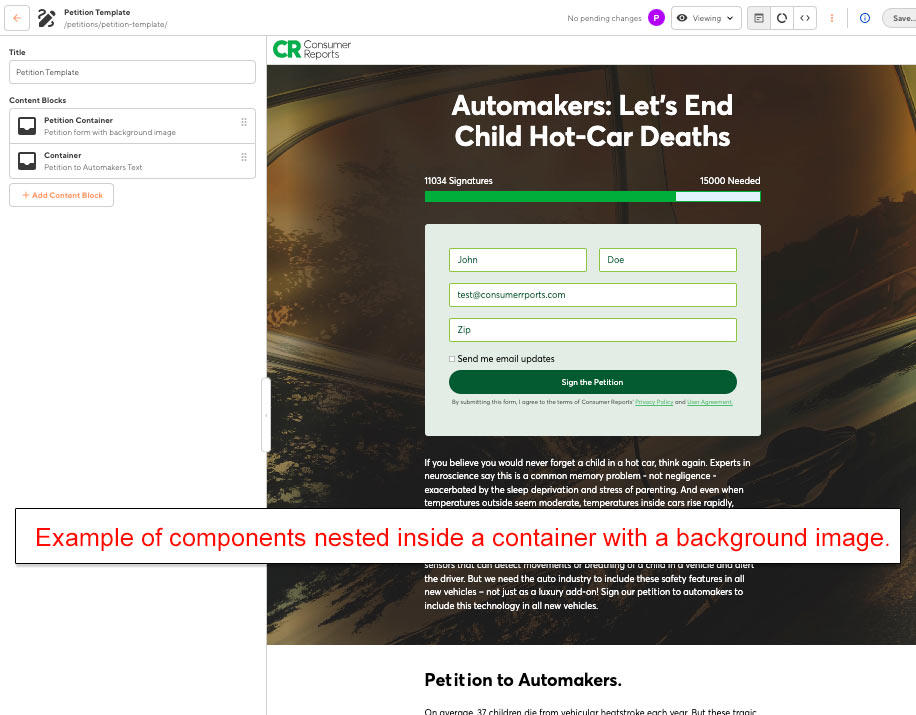
If you would like your content on a white background, you should be able to add content blocks directly to the page without nesting them inside a container. The components will respect the maximum width of the page content. There may be some special circumstances where you would want to use a container even if the background color is white. For example, if you want to customize the padding, or set the width to be extra wide or extra narrow.
The “Volunteer Signup Container” Content Block
The “Volunteer Signup Container” functions exactly like the “Container” content block, but it is specifically designed to hold the content for a volunteersignup form. Inner blocks created for other page types are omitted from the “inner components” options for simplicity.
The “Volunteer Signup Form” Content Block
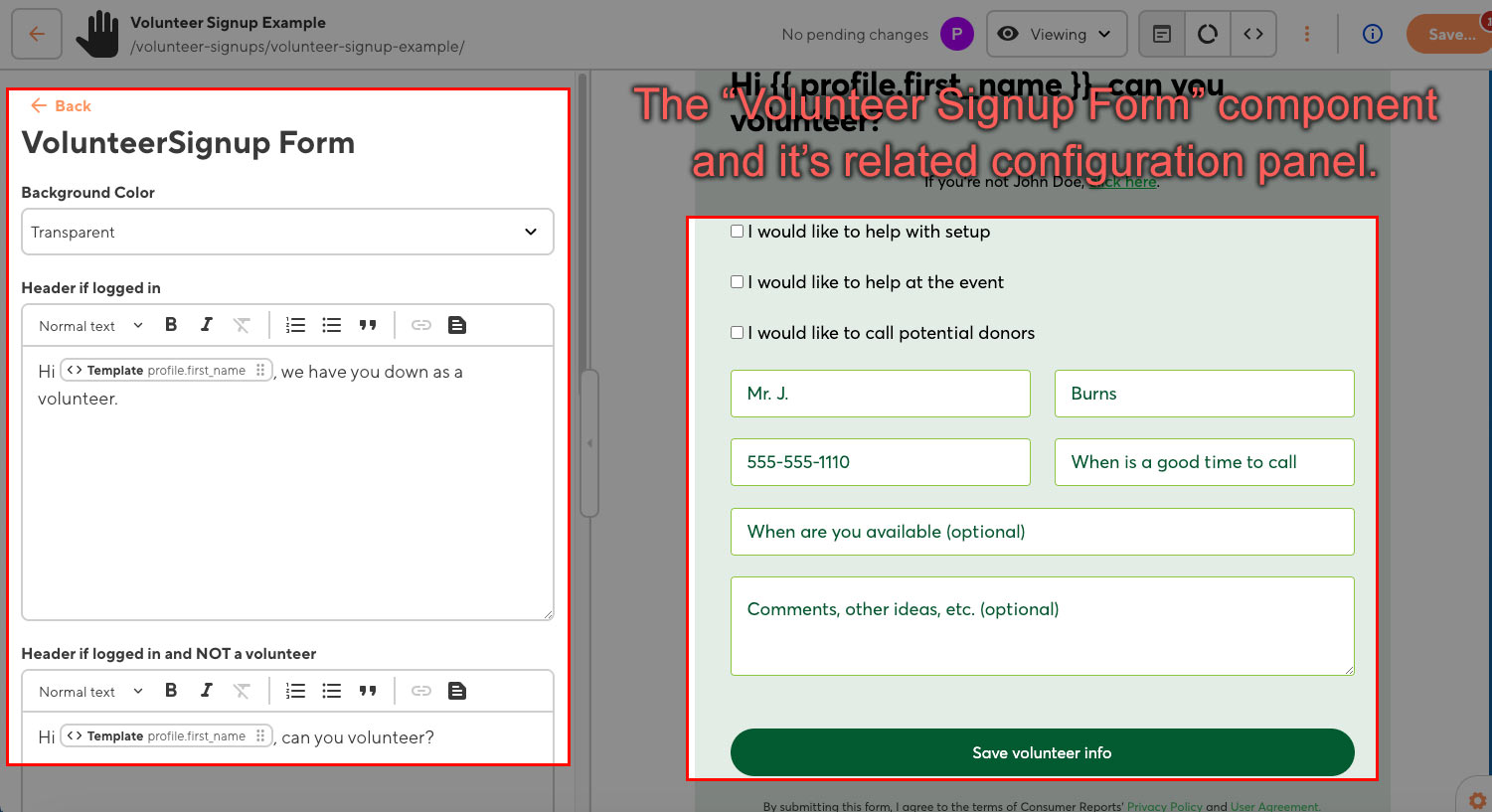
The “Volunteer Signup Form” content block is used to place a signup form on the page. Settings in this component allow you to change some of the copy that displays before and after the user has signed up.
NationBuilder Settings for Volunteer Signups
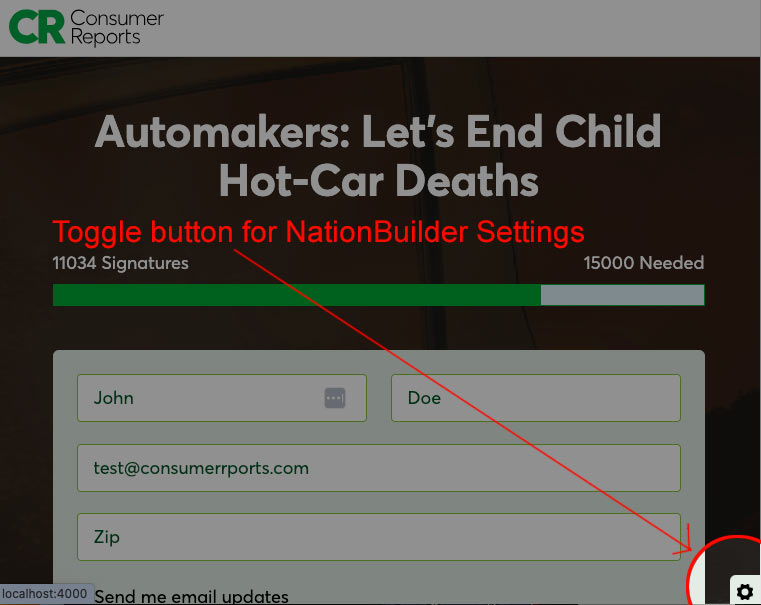
Click the gear icon in the bottom right corner to open the NationBuilder Settings drawer. These settings will allow you to change how you view the page in CloudCannon, but you will need to also adjust these settings in NationBuilder when you create the live page.
User Settings
 These toggle buttons change the view of the page to replicate whether the user is logged in. “Sorta logged in” refers to when the user has not actually logged in with their credentials, but NationBuilder can detect the user based on other factors.
For volunteer signups, set the profile to “Volunteer” to see the page as it would look after the user has submitted the form.
Configuration Settings
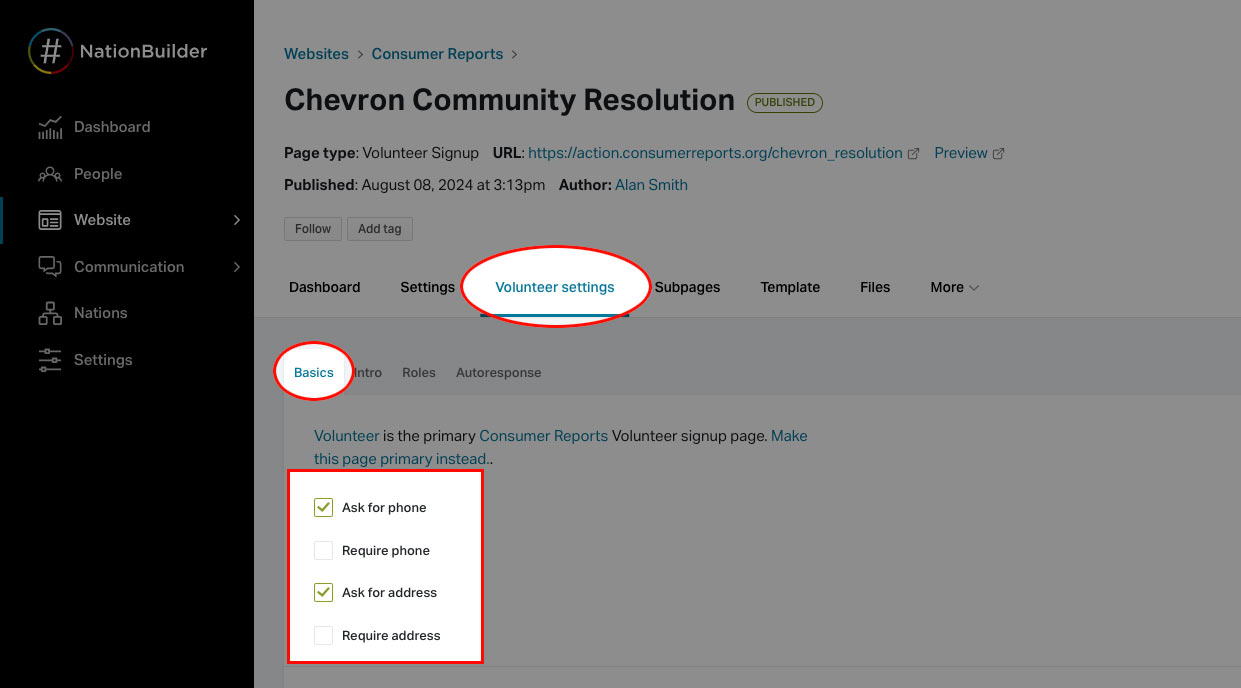
The “Ask for Phone” and “Ask for address inputs will adjust which form fields will display in the form. Updating these settings is for display purposes only, you will need to adjust these settings in NationBuilder under “Volunteer Settings -> Basics”.
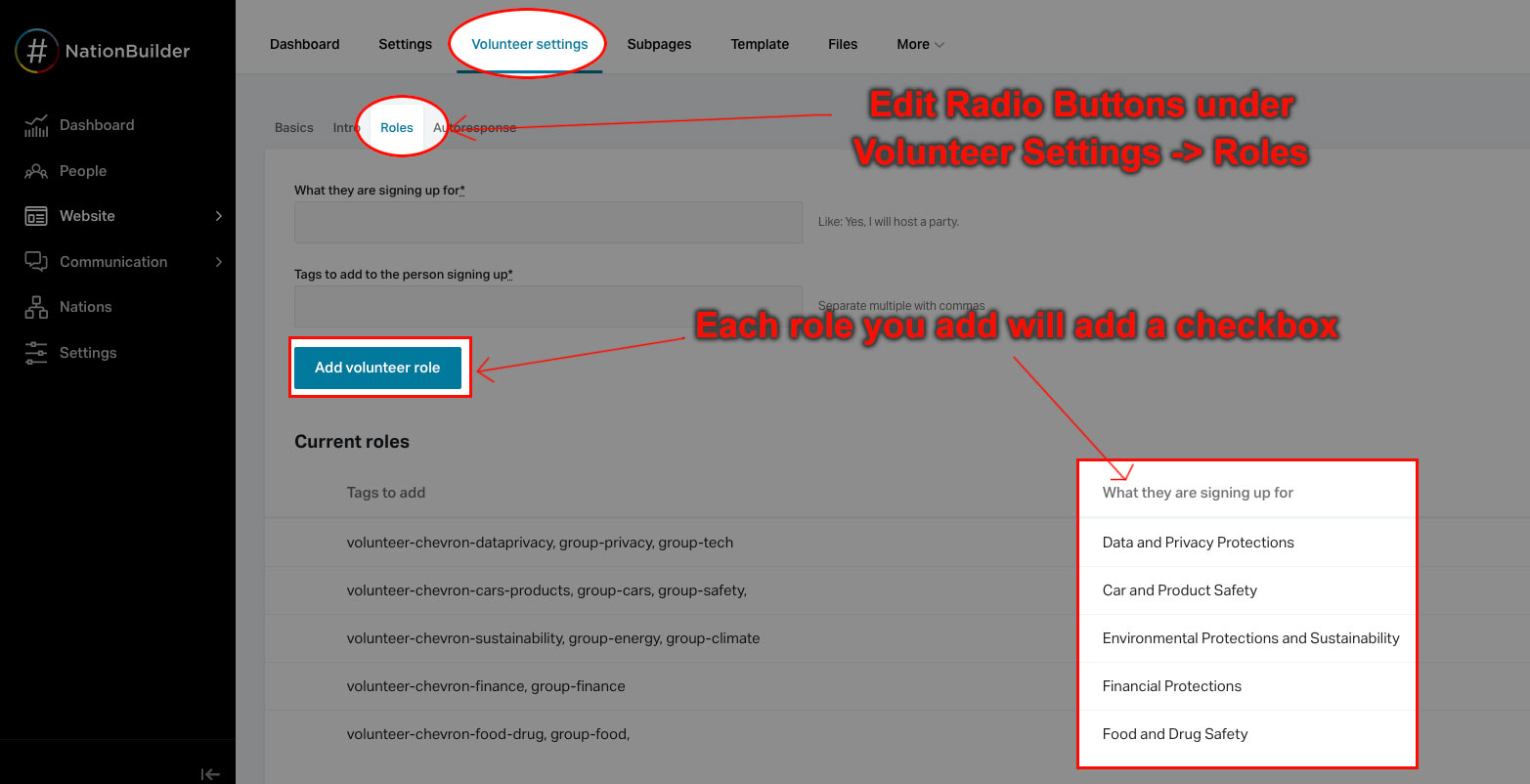
Set some values for the “Tag” inputs to view how the form will look with some volunteer roles. This is for testing and review purposes only, as the actual values will be set in NationBuilder under “Volunteer Settings -> Roles”
SMS Settings
displays the text “Text ___ to sign” below the submit button. This replicates what would display in NationBuilder if a text keyword is added to the form. This setting is adjusted in NationBuilder under “Volunteer Settings -> Text Keywords”. Leave blank to omit.